Skill
1. Introduction
A Skill is a reusable capability configuration that enables Agivar to complete a specific kind of task. You can package recurring workflows, professional knowledge, tool-use rules, or output formats into a Skill. Agivar can then invoke it automatically in the appropriate situation, completing work more consistently and efficiently, reducing repeated explanations, and helping teams standardize how work is done.
2. Skill files
SKILL.md is a capability description intended for an AI client to read. It tells the AI client which desktop tasks are suitable for Agivar, which process to follow when calling Agivar MCP tools, how to determine whether a task is complete, and how to handle exceptions.
If your AI client supports Skills or custom Skills, importing Agivar's SKILL.md helps the client choose Agivar more reliably when a task requires real desktop interaction. It can then start tasks, poll for results, continue a conversation, cancel tasks, and inspect screenshot evidence using the recommended approach.
A Skill file typically explains:
- which types of tasks are suitable for Agivar;
- which types of tasks are not suitable for Agivar;
- how to write an effective task description;
- the recommended sequence for calling tools;
- how to continue a conversation, cancel a task, and read its results;
- how to use the summary, observation records, and screenshots to determine whether a task is complete;
- important considerations when using Agivar.
3. Manage Skills
3.1 Open the Skills page
Click Extension Center in the left sidebar on the home page. After entering the Extension Center, click the Skills tab at the top.
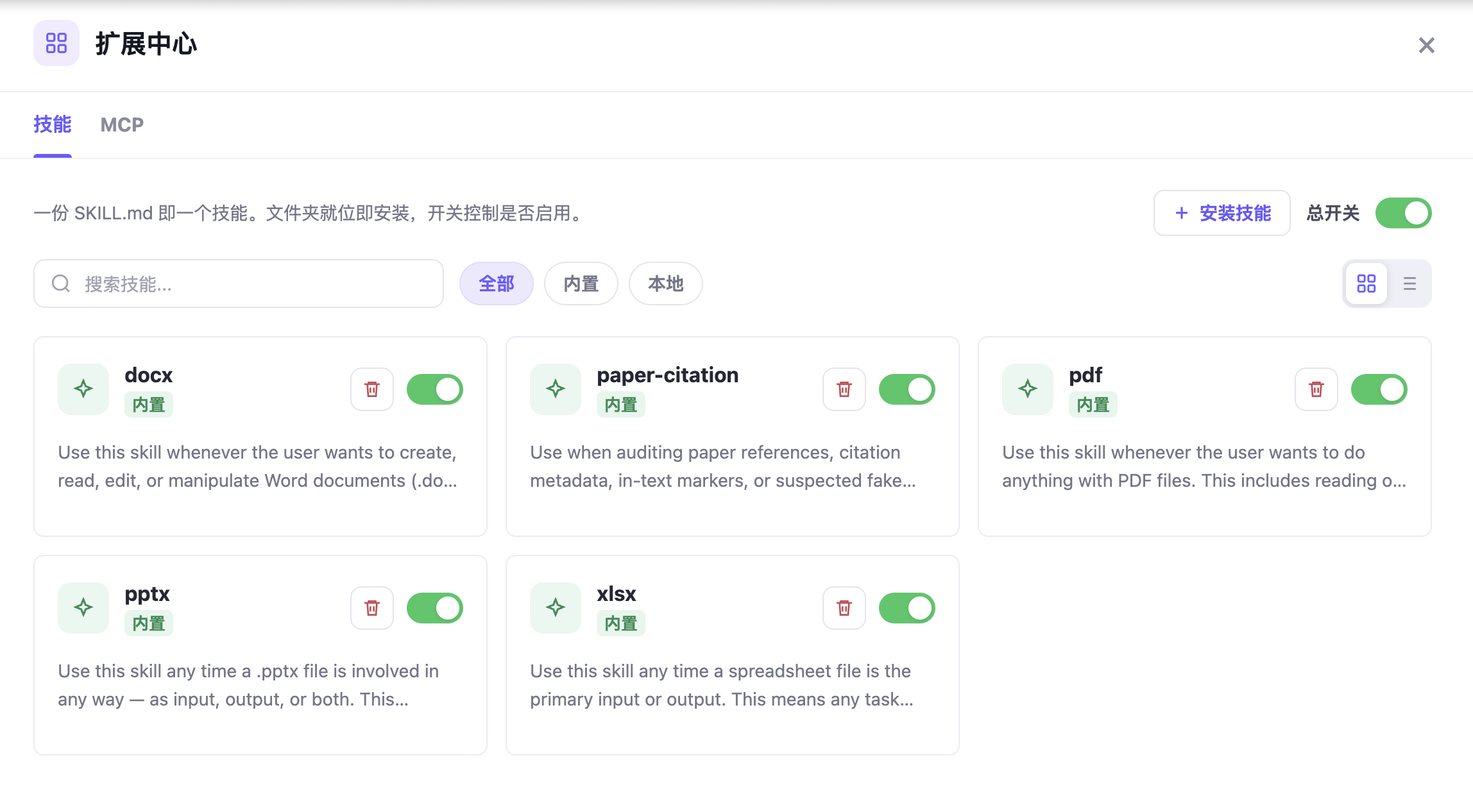
The Extension Center has two tabs: Skills and MCP. Use the Skills tab to view, install, enable, disable, or delete Skills. Use the MCP tab to manage MCP-related configuration.
3.2 Install a Skill
In the Skills tab of the Extension Center, click + Install Skill in the upper-right corner, then select the folder containing SKILL.md. After installation succeeds, the Skill appears in the Skill list.
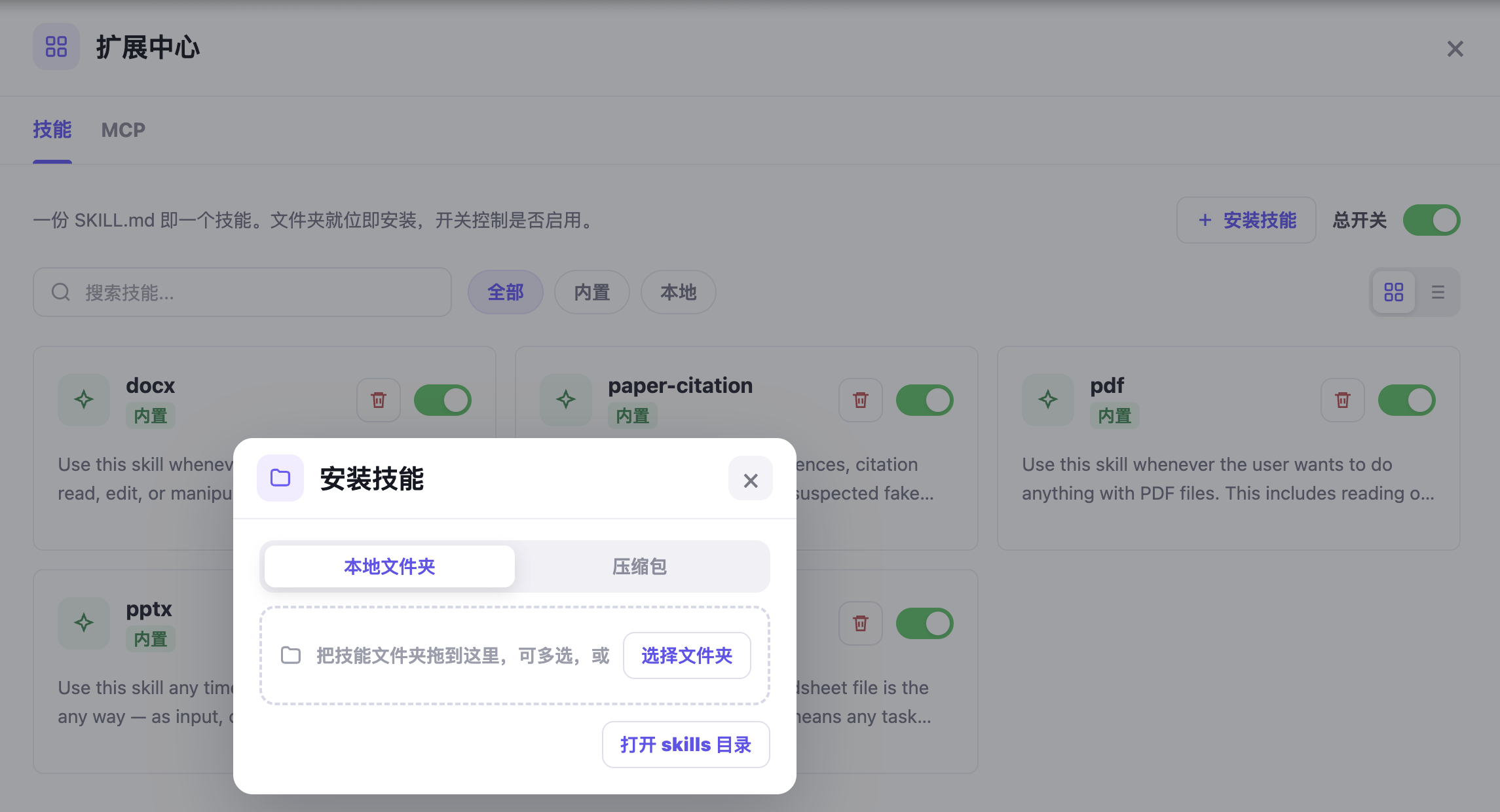
When installing a Skill, select its folder rather than the individual SKILL.md file. A standard Skill folder must contain a SKILL.md file. For example, a folder named my-skill should contain one SKILL.md file.
After installation, Agivar reads the instructions in SKILL.md and uses them when needed.
3.3 Find configured Skills
In the Skills tab of the Extension Center, you can find installed Skills using search, filters, and view options.
If you know a Skill's name or a relevant keyword, enter it in the search box, such as pdf, docx, xlsx, or paper. The list automatically filters to matching Skills.
To the right of the search box are three filters: All, Built-in, and Local. All shows every installed Skill; Built-in shows only Skills included with Agivar; Local shows only Skills installed locally by the user. Each Skill card also displays a source label, such as Built-in or Local, so you can identify where it came from.
On the right side of the page, you can switch between grid view and list view. Grid view presents Skills as cards and is useful for quick browsing. List view is useful for quickly reviewing a large number of Skills.
3.4 Skill card reference
Each Skill is displayed as a card. The card shows the Skill's name, source, description, delete action, and enabled state.
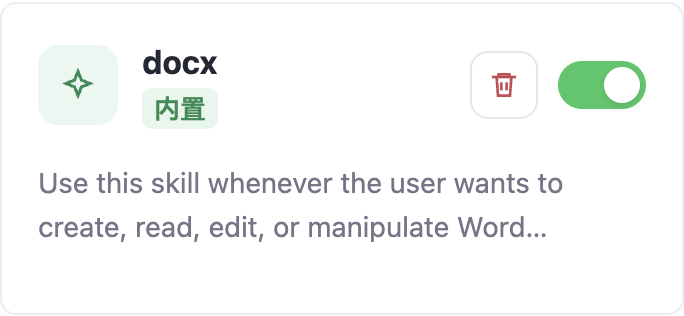
- Skill name: identifies the Skill, such as
docx,pdf, orxlsx. - Source label: indicates whether the Skill is Built-in or Local.
- Description: briefly explains which tasks the Skill is designed to handle.
- Delete button: removes the Skill.
- Enable switch: controls whether Agivar can use the Skill.
3.5 Enable and disable Skills
Each Skill card has its own switch in the upper-right corner. When the switch is on, the Skill is enabled and Agivar can use it. When the switch is off, the Skill is disabled and Agivar will not use it.
The upper-right corner of the page also contains a master switch that controls whether any Skills can be used. When the master switch is on, Skills are allowed. When it is off, all Skills are suspended. Even if an individual Skill's switch is on, that Skill does not take effect while the master switch is off.
To disable only one Skill temporarily, turn off the switch on its card. To disable all Skills temporarily, turn off the master switch.
3.6 Delete a Skill
Click the delete icon on a Skill card to remove that Skill.
After deletion, the Skill no longer appears in the list and the Agent can no longer use it. Whether a built-in Skill can be deleted depends on the options shown in the interface.
4. Use a Skill in a conversation
After a Skill is installed and enabled, you can invoke it by typing / in the conversation input box.
Type / in the input box and Agivar displays the currently available Skills and MCPs. Installed and enabled Skills appear in this list. Select the Skill you want, then enter the task and send it.
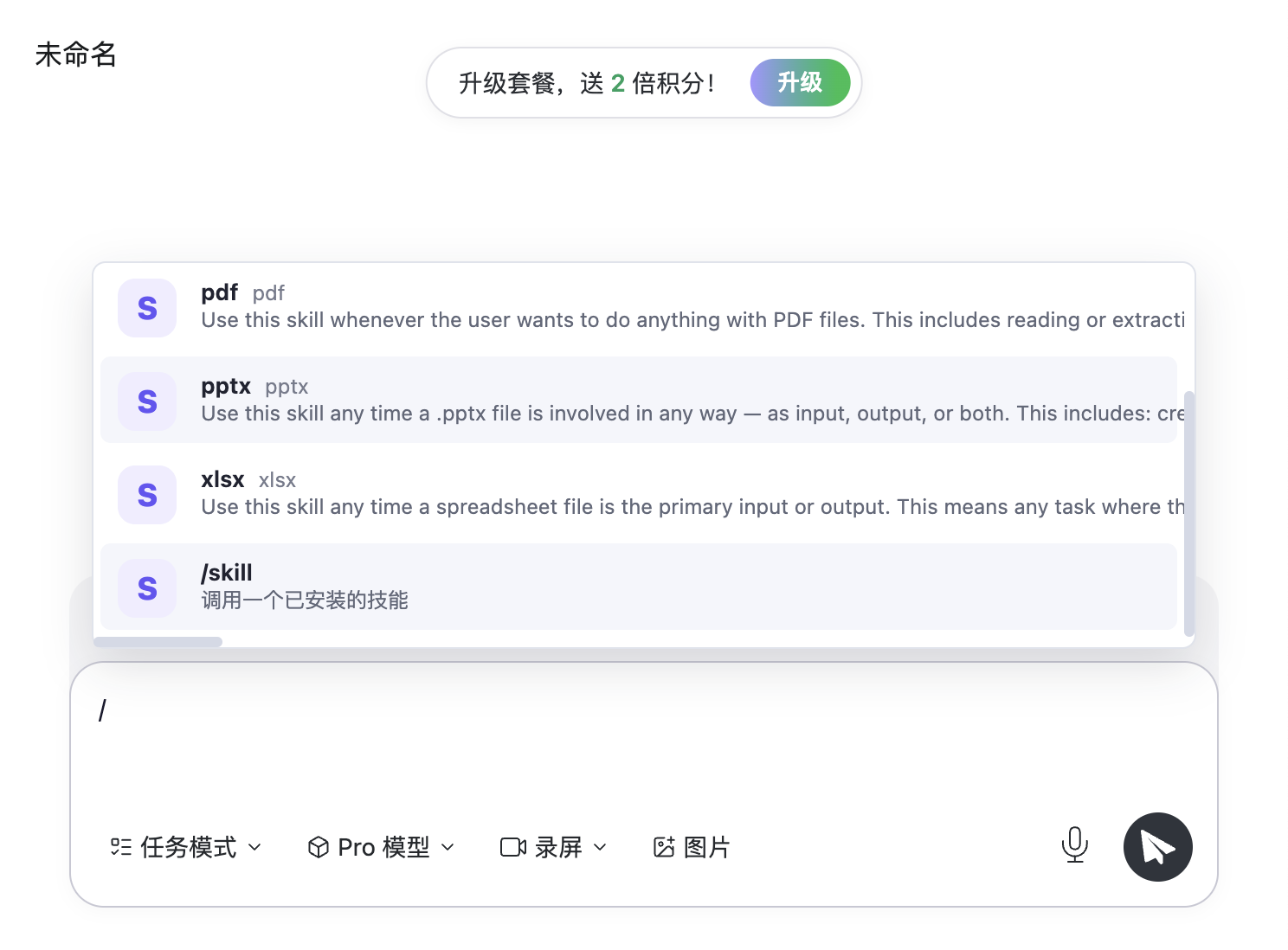
After sending, a label above the conversation shows the Skill currently in use, indicating which Skill the task is using.

4.1 Usage tips
If you want Agivar to follow a particular Skill explicitly, type /, select the target Skill, and then enter the task.
If the target Skill does not appear after you type /, return to Extension Center → Skills and check whether the Skill is installed, whether the switch on its card is on, and whether the master switch in the upper-right corner is on.
If the Skill is installed but its label does not appear above the conversation after you send the task, the Skill was not successfully used for that task. Select it manually with / and send the task again, or add an instruction in the conversation saying that the specified Skill must be used.
5. FAQ
5.1 The Skill does not appear after installation
First, make sure you selected the folder containing SKILL.md, rather than selecting the SKILL.md file itself. Also confirm that the filename is exactly SKILL.md.
If the folder and filename are correct, check that you are on the Skills tab rather than the MCP tab. You can also clear the search box or switch the filter to All in case the Skill is hidden by a search term or filter.
5.2 The Skill is installed but does not take effect
Confirm that the switch in the upper-right corner of the Skill card is on, then confirm that the master switch in the upper-right corner of the page is also on.
If the Skill still does not take effect, try restarting Agivar.