Agivar Virtual Desktop User Guide
1. Overview
Virtual Desktop is a Windows-only Agivar feature that lets AI perform tasks in an independent desktop environment that is fully isolated from your current desktop, so your own work is not interrupted.
After Virtual Desktop is enabled, Agivar opens a separate viewer window showing a truly isolated child desktop. It has its own wallpaper, icons, and running programs, and it does not interfere with your main desktop. All AI actions, including clicks, typing, opening apps, and browsing web pages, happen inside this child desktop. Your main desktop stays clean and usable.
2. Key Benefits
- Real Desktop Isolation
Virtual Desktop is not screenshot simulation. It is an independent system-level desktop session. AI actions inside it are fully separated from your main desktop and do not affect it.
- No Interruption on Your Main Desktop
During task execution, your mouse, keyboard, and running programs are not affected. You can keep using your computer normally while AI completes tasks in the background virtual desktop.
- Real-Time Visibility
The Virtual Desktop window shows the child desktop in real time, so you can check what AI is doing at any moment, like watching another computer work.
- No Restart Required
You can enable or close Virtual Desktop at any time without restarting your computer. After it is closed, the child desktop session is cleaned up.
- Independent Task Progress Panel
During task execution, progress messages, TODO lists, and operation updates appear inside the virtual desktop, not on your main desktop. This keeps your main desktop uncluttered.
3. Enabling and Closing Virtual Desktop
3.1 Enable Virtual Desktop
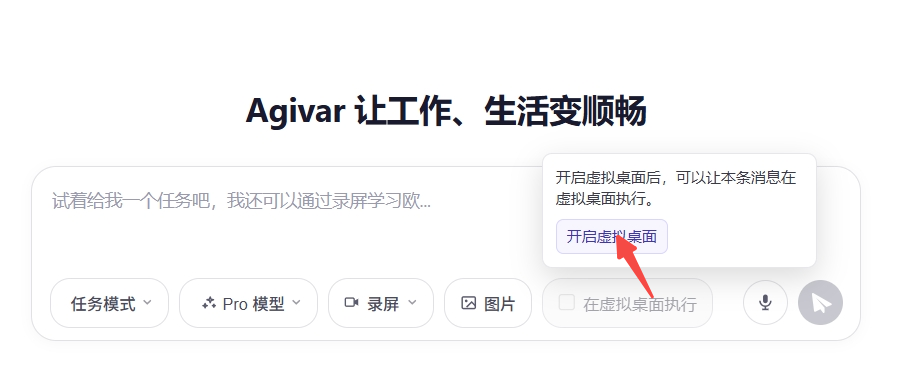
The "Run in Virtual Desktop" checkbox is gray and cannot be selected directly before Virtual Desktop is enabled. To enable it:
- Hover over the gray "Run in Virtual Desktop" checkbox below the chat input box. When the tooltip appears, click "Enable Virtual Desktop".
- Windows may show one or two User Account Control (UAC) prompts. Click "Yes" to allow them.
- Wait briefly. The Virtual Desktop viewer window opens. After the desktop appears, it asks you to enter your local Windows account password. The child desktop is ready only after you complete this login.
- After login, the "Run in Virtual Desktop" checkbox becomes available. Select it to run the current message in Virtual Desktop.
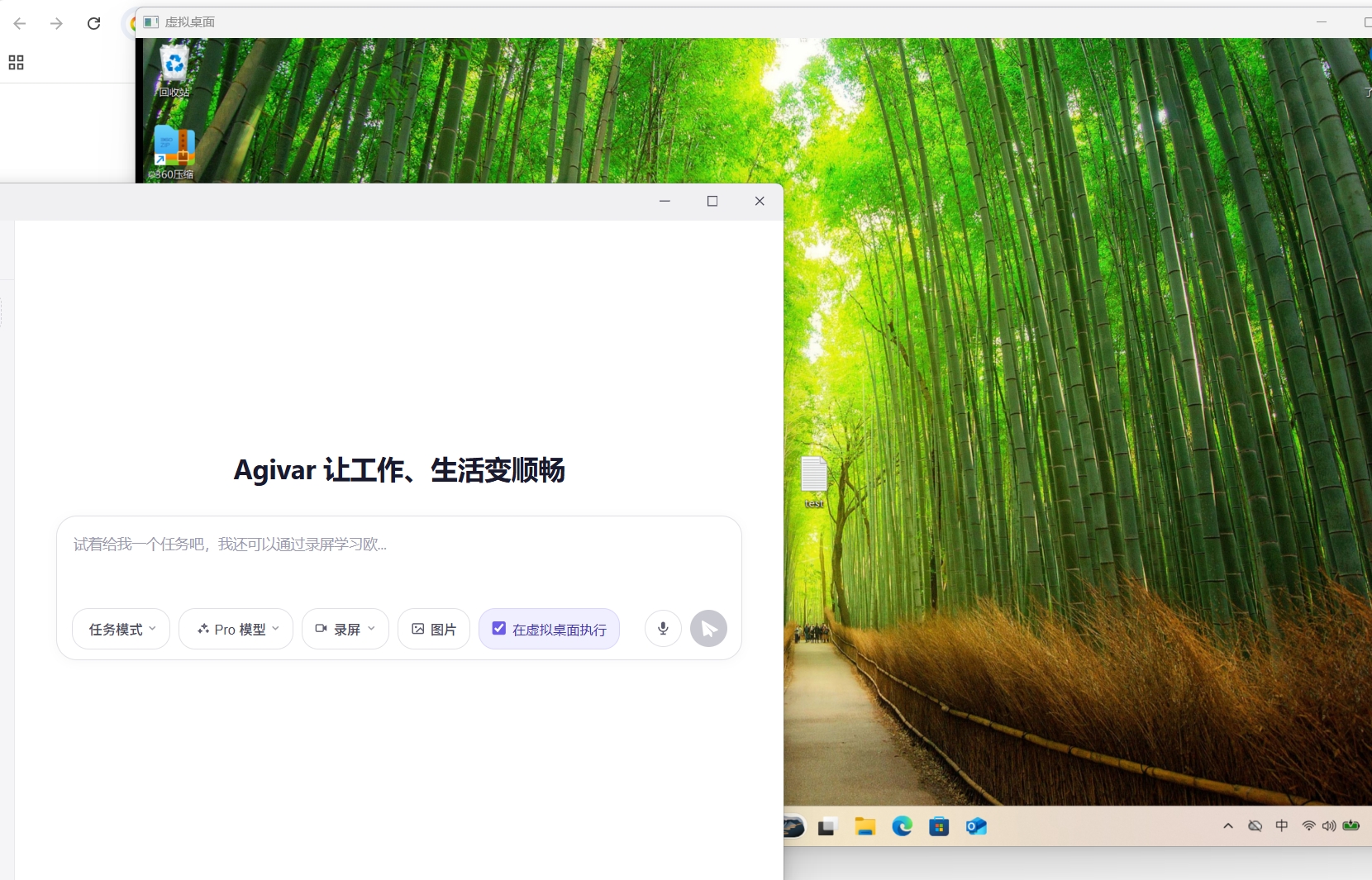
Tip: UAC approval and account-password login are only required when Virtual Desktop is first enabled. They will not appear again while the virtual desktop is running.
3.2 Close Virtual Desktop
- Close the Virtual Desktop viewer window directly. The child desktop will be logged out and cleaned up automatically.
- Or close Virtual Desktop through the settings entry.
After closing, all programs running inside the child desktop are ended. The next time you enable it, you start with a fresh clean environment.
4. How to Use It
4.1 Choose the Execution Target Per Message
Virtual Desktop is controlled per message. You can choose flexibly:
- Selected "Run in Virtual Desktop": all desktop operations triggered by this message, such as screenshots, clicks, keyboard input, opening apps, and opening web pages, are performed inside Virtual Desktop.
- Not selected: even if the Virtual Desktop window is already open, this message still runs on your real desktop and is not affected.
This means you can control whether each individual message is handled in Virtual Desktop or on the real desktop, even within the same conversation.
4.2 File Operation Isolation
When a task runs in Virtual Desktop mode, Agivar's file read/write paths automatically point to the virtual desktop user's directories. It will not accidentally operate on files on your main desktop. This is transparent to you, and you do not need to specify paths manually.
5. Task Experience
5.1 Viewer Window
The Virtual Desktop viewer window shows the child desktop in real time. The image is scaled proportionally to fill the window, and black borders may appear around it. This is normal aspect-ratio fitting. You can resize the window freely or minimize it. Minimizing it does not affect Agivar's task execution in the background.
5.2 Task Progress Panel
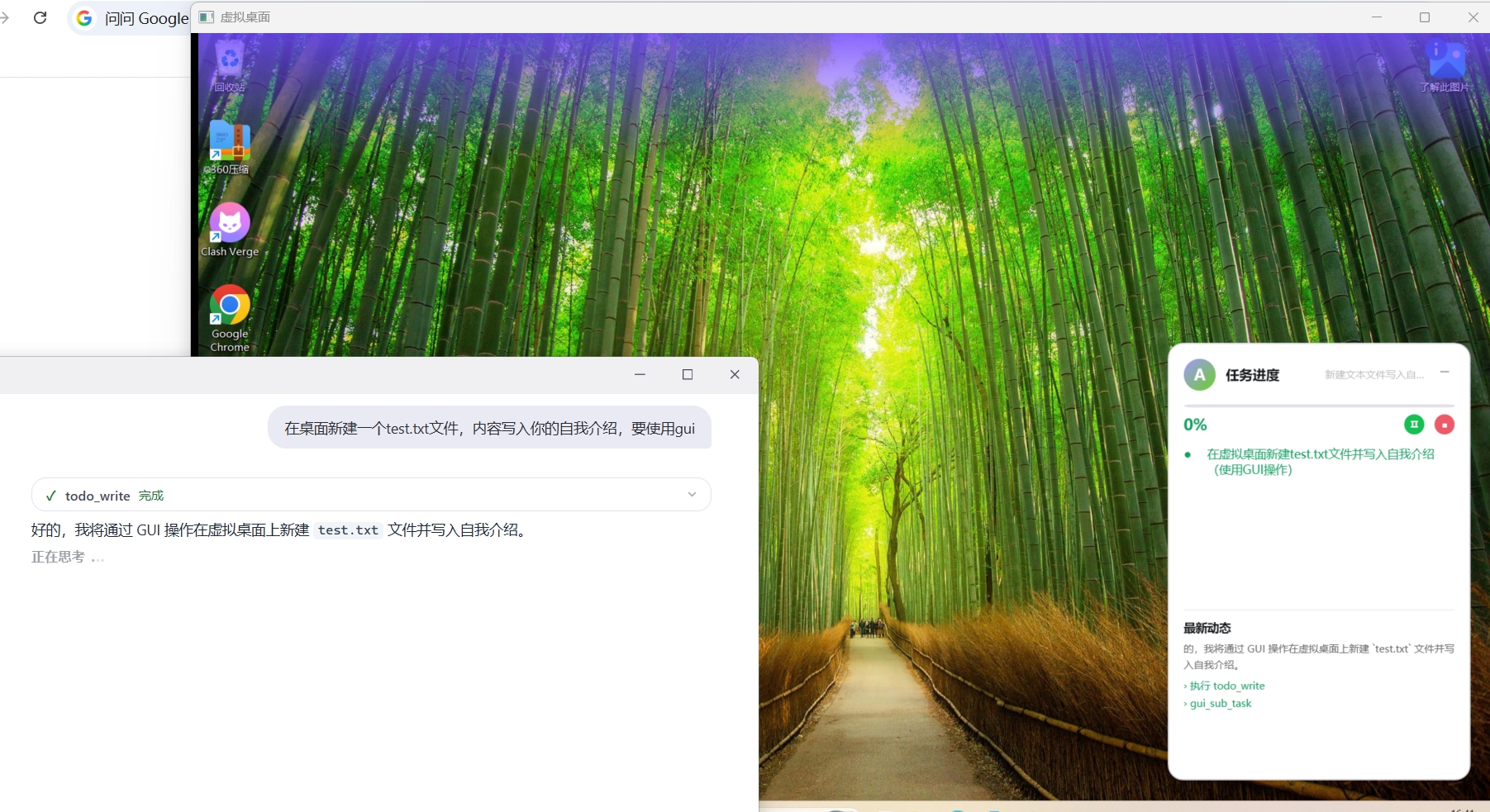
During task execution, the task progress panel in the lower-right corner and the purple status bar at the top appear inside Virtual Desktop, not on your main desktop. To see progress information, look at the Virtual Desktop viewer window.
- The progress panel includes the task name, progress bar, TODO step list, and latest operation updates.
- The progress panel only appears when Agivar is performing actual UI operations. It does not appear for file, command, network, or other non-UI operations.
5.3 Parallel Conversations
You can open multiple conversations at the same time. One can run in Virtual Desktop while another runs on the real desktop. They do not block each other and can work in parallel.
If two conversations both need to perform UI operations on the same desktop, either the real desktop or Virtual Desktop, the later one will automatically queue and wait to avoid conflicts.
6. Limitations and troubleshooting
-
Windows Only
Virtual Desktop is a Windows-only feature. It is not available on macOS or Linux, and the related entry is not shown there.
-
The Checkbox Requires Virtual Desktop First
The "Run in Virtual Desktop" checkbox is gray and unavailable by default. You must first start Virtual Desktop through the hover tooltip's "Enable Virtual Desktop" entry, then complete UAC approval and account-password login. After that, the checkbox becomes available.
-
Only One Virtual Desktop at a Time
Only one active Virtual Desktop session can exist at a time. If you try to enable it again, Agivar focuses the existing Virtual Desktop window and does not create another one.
-
Login Requires an Account Password
After Virtual Desktop starts, the child desktop shows a login screen. You must enter your local Windows account password to complete login. The following login methods are not supported and must be replaced with an account password:
-
PIN
-
Windows Hello, such as face or fingerprint login
-
Passwordless Microsoft account login
If you do not usually log in with a password, confirm or set your account password in Windows Settings first. Otherwise, you will not be able to complete the Virtual Desktop login step.
-
Recording and Memory Do Not Apply to Virtual Desktop
Tasks executed in Virtual Desktop mode do not support recording playback or memory-library read/write. If a task depends on historical recording content or long-term memory, organize the needed information in the original desktop conversation before starting the Virtual Desktop task.
-
Virtual Desktop Tasks Do Not Fall Back to the Real Desktop
After a message is started in Virtual Desktop mode, Agivar will not automatically switch to operating your real desktop if Virtual Desktop is unavailable. If Virtual Desktop has a problem, Agivar clearly tells you the reason, and you decide whether to switch to the real desktop.
-
Closing Ends Running Programs, but Files Are Not Lost
Closing Virtual Desktop logs out the child desktop session. Running programs are closed, and unsaved content is lost. However, files in the child desktop user's folders, such as Desktop, Documents, and Downloads, are stored on the local disk and are not deleted when the session logs out. They can still be accessed the next time Virtual Desktop is enabled. Make sure your work inside programs is saved before closing.
-
Apps That Do Not Support Multiple Instances
Because of vendor design limitations, the following apps are known not to support running on both the system desktop and Virtual Desktop at the same time. Most apps that run in the system tray are likely to have the same limitation.
-
Google Chrome
-
Microsoft Edge
-
JD Jingmai
-
Pinduoduo client
-
Fiddler
-
XMind
-
Tencent Video
-
Clash Verge
-
Codex
-
Fixing a White Screen After Virtual Desktop Starts
If the Virtual Desktop window stays on a white screen, black screen, or "logging in to Virtual Desktop" for a long time, the Windows child desktop usually did not log in successfully. Try the following steps in order:
- Close the Virtual Desktop window, then open it again. Sometimes child desktop initialization is slow, and reopening it is enough to recover.
- Confirm that you allowed the Windows permission prompt. A system permission/UAC prompt may appear when Virtual Desktop starts. If you click "No" or close the prompt, Virtual Desktop will not start normally. Make sure you approve the Windows permission prompt if you want to use Virtual Desktop.
- Sign out of Windows and sign in again, then try again. If the window shows
localhost, Windows Security, account/password prompts, or similar content, Windows may need to rebuild the child desktop login state. Save your work first, sign out from the Windows Start menu, sign back in, and then open Agivar Virtual Desktop. - If you usually use only PIN or Windows Hello, try signing in once with your account password. In some Windows environments, the child desktop cannot directly reuse PIN, fingerprint, or face-login state and needs a real account password for one verification.
- Check whether security software or company policy is blocking it. Enterprise security policies, app control, or antivirus blocking can prevent the Virtual Desktop component from starting. Allow Agivar's Virtual Desktop component to run, or contact your administrator.
- If it still cannot recover, send diagnostic files to support. Diagnostic files are usually located at:
C:\ProgramData\agivar\vd\error
C:\ProgramData\agivar\vd\diagnostic
If these files exist, copy their contents and send them to support.
A white screen in Virtual Desktop does not affect files on your real desktop. To avoid accidental operations, Agivar will not automatically switch to the real desktop while Virtual Desktop is not ready.
-
Fixing a Blurry Screen After Virtual Desktop Starts
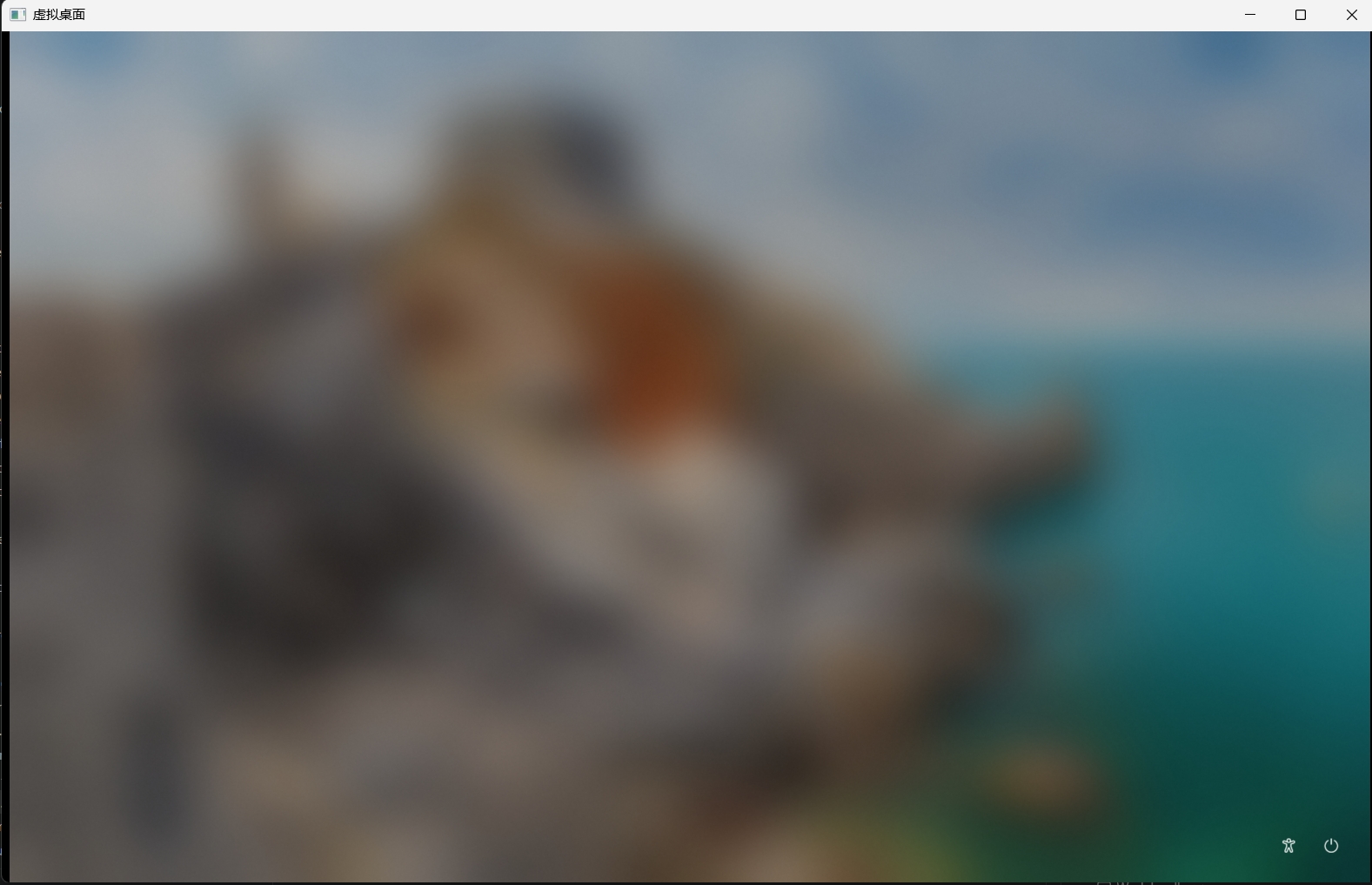
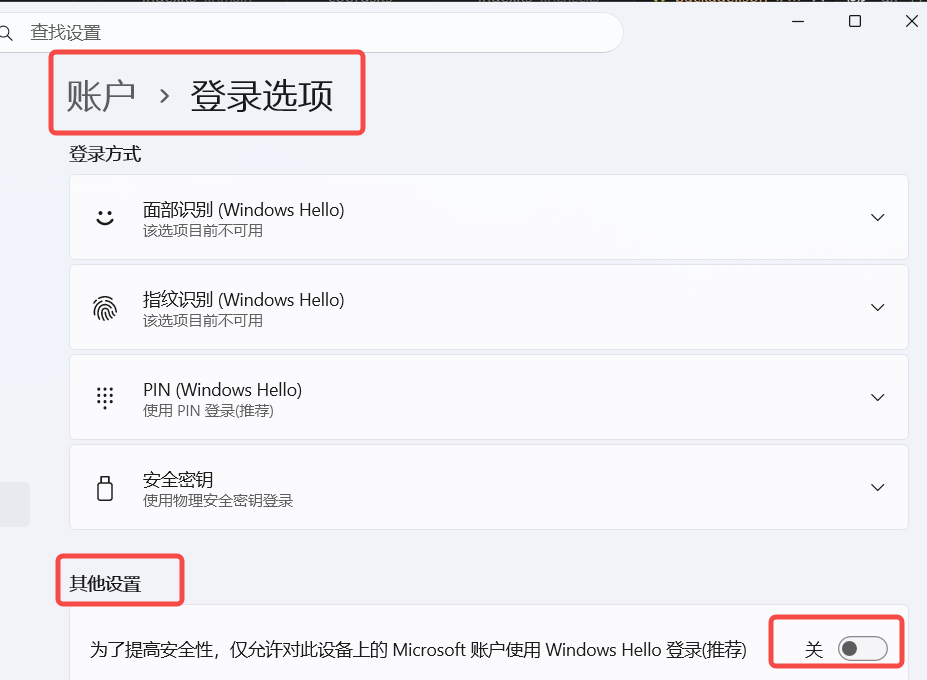
If Virtual Desktop starts normally after you click enable, but the password input screen does not appear and the screen looks blurry as shown below, it is likely that "Only allow Windows Hello sign-in for Microsoft accounts on this device" is enabled. Turn this setting off, then restart Virtual Desktop to log in.
7. Notes
- Do not force quit the Agivar process: if Agivar exits unexpectedly, Virtual Desktop usually detects this and cleans up the child session automatically. Force quitting the process, such as through Task Manager, may occasionally require restarting Agivar manually before Virtual Desktop can be enabled again.
- The Virtual Desktop viewer window can be minimized: minimizing it does not affect task execution. Agivar continues working in the background. Do not close the window unless you want to stop using Virtual Desktop.
- Do not manually operate content inside the Virtual Desktop window during task execution: the viewer is for observation only. Agivar's operations are sent to the child desktop through an independent channel, and manual clicks inside the viewer may interfere with the task.
- First use may take about 10-30 seconds: the system needs time to initialize the child desktop environment the first time you use Virtual Desktop. Please wait for the screen to appear.
- Clipboard behavior: Virtual Desktop and the system share clipboard content. Clipboard content is not isolated.
8. FAQ
Q: After enabling Virtual Desktop, a window asks me to enter a password. Is that normal?
A: Yes. After Virtual Desktop starts, the child desktop needs your local Windows account password before it is ready. This is required the first time it is enabled. After you enter the password and log in, the child desktop appears normally and the "Run in Virtual Desktop" checkbox becomes available.
Note: Enter your Windows account password, not your PIN. If you usually use PIN, Windows Hello, or passwordless Microsoft account login, use your account password instead. If you do not remember the password, reset it through Windows Settings and try again.
Q: The Virtual Desktop window is black and keeps showing "Connecting". What should I do?
A: Connecting to the child desktop takes a little time and usually completes within 10-30 seconds. If the screen still does not appear after more than 1 minute, close the Virtual Desktop window and open it again. Agivar automatically cleans up the previous leftover state and reconnects.
Q: Can I install software inside Virtual Desktop?
A: Yes. AI can perform normal desktop operations inside Virtual Desktop, including downloading and installing software. Note that after Virtual Desktop is closed, installed software and generated files inside the child desktop may be cleared, and the next startup is a fresh environment. To keep installation results, copy related files to the main desktop directory before closing.
Q: Will my main desktop mouse be controlled while a Virtual Desktop task runs?
A: No. All mouse and keyboard operations inside Virtual Desktop happen entirely in the child desktop. They do not affect your main desktop cursor or keyboard focus. You can continue using your main desktop while AI runs the task.
Q: Can I open multiple Virtual Desktops at the same time?
A: No. Only one Virtual Desktop session can exist at a time. If you need to run multiple tasks in parallel, open multiple conversations. One can use Virtual Desktop while others run on the real desktop, and they can run at the same time without interfering with each other.
Q: Are files still there after I close Virtual Desktop?
A: Yes. Closing Virtual Desktop only logs out the child desktop session. The child desktop user's personal folders, including Desktop, Documents, and Downloads, remain on the local disk and are not deleted. After you enable Virtual Desktop and log in again, those files are still accessible.
Note: Programs running inside the child desktop are closed when the session logs out, and unsaved content is lost. Save work to files before closing Virtual Desktop.
Q: Is Virtual Desktop available on macOS or Linux?
A: No. Virtual Desktop is a Windows-only feature and depends on Windows-specific system capabilities. In Agivar for macOS and Linux, this feature entry is not shown.
Q: If Agivar crashes, will Virtual Desktop keep using system resources?
A: No. Agivar includes a detection mechanism. When it detects that the Agivar main process has exited, Virtual Desktop closes automatically and logs out the child session. It does not leave residual processes or affect system shutdown.
Q: Why does the task progress panel appear inside Virtual Desktop instead of on my main desktop?
A: This is by design. Progress information for Virtual Desktop tasks belongs to the virtual desktop and is shown inside the child desktop to avoid interrupting your main desktop. You can watch the Virtual Desktop viewer window to check progress. If you run a task on the real desktop, the progress panel appears normally in the lower-right corner of the main desktop.
Q: The "Run in Virtual Desktop" checkbox is gray and cannot be selected. Why?
A: The checkbox is gray because Virtual Desktop has not been enabled yet. Hover over the checkbox, click "Enable Virtual Desktop" in the tooltip, then complete Windows permission confirmation (UAC) and account-password login. After login succeeds and the child desktop is ready, the checkbox becomes available.
If you encounter an issue not covered in this guide, contact Agivar support.